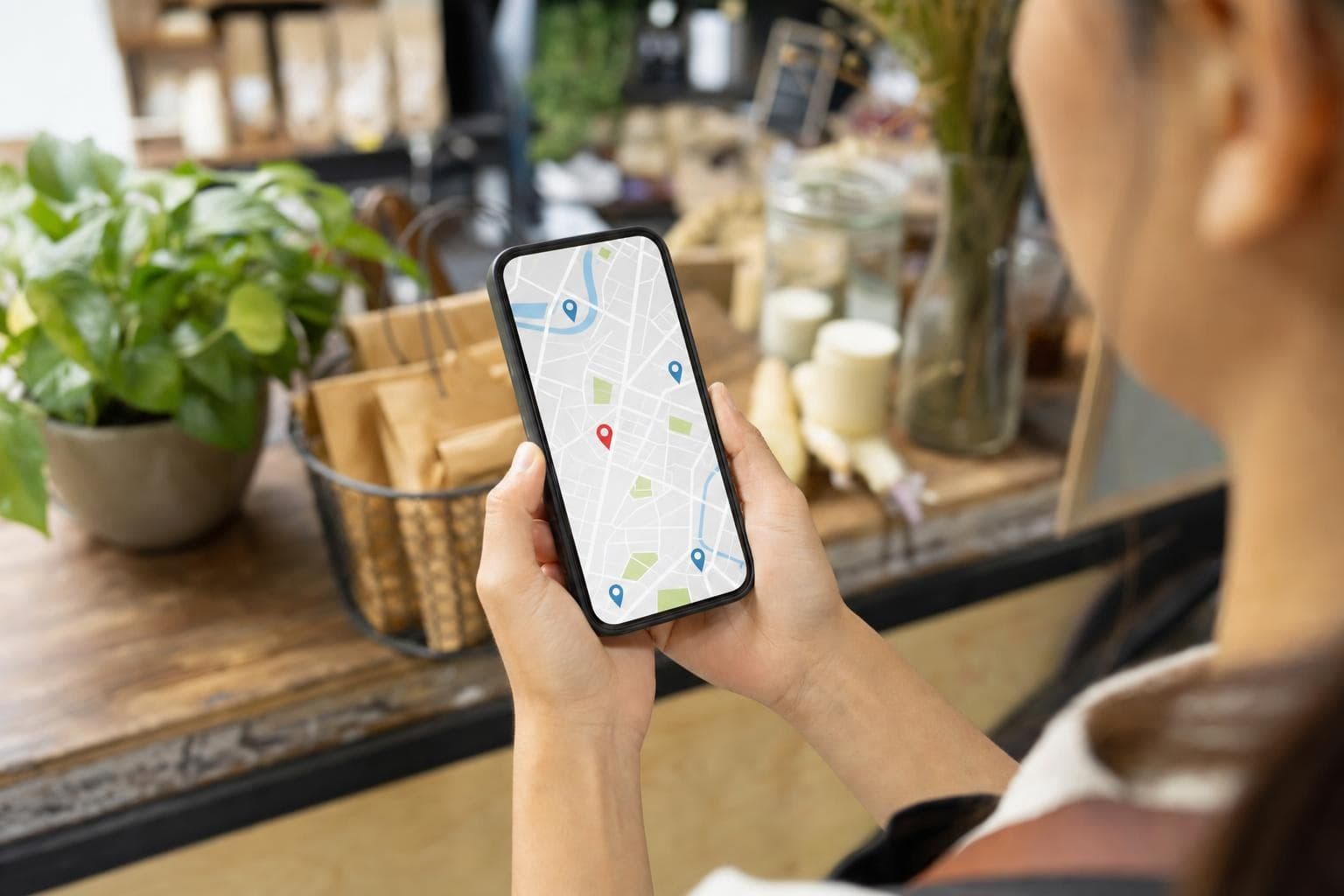
Someone in Peoria searches for the service you provide. Your Google Business Profile appears. They check the phone number, hours, reviews, photos, and website link. If one of those details looks wrong or feels empty, they have an easy reason to call the next business.
This checklist gives you a simple way to review the profile before that happens. It will not guarantee a top position. It will make the information Google and your customers use easier to understand.
Start with ownership and the basics
Make sure the profile is claimed, verified, and connected to the Google account that should manage it. If the wrong person owns the profile, small edits can turn into a slow access problem later.
Compare the profile with the real business. Check the name as it appears on your sign and other real-world materials. Call the main phone number. Open the website link. Confirm regular hours, special hours, and the address or service area.
Open the profile on a phone after you make changes. That is how many customers will see it. A number that is correct in the dashboard but hard to tap, or a page that loads the wrong location, still costs you the call.
Choose a category that describes the main job
Your primary category tells Google what kind of business you run. It should describe the main job customers hire you to do, not every service you could mention on a sales call.
Search the available category list and choose the closest match. Add another category only when it fits the business you actually operate. Do not add a category because a keyword looks popular, and do not change the primary category every few weeks to chase a new phrase. Your profile should describe the business consistently.
The category list is set by Google. If the exact label you want is not available, choose the closest accurate option and explain the rest through your services and website.
Check competitor categories before you guess
You do not have to guess which categories the businesses above you use. Search your main service in Google Maps and open the top three profiles. A browser extension such as GMB Everywhere can show each listing's primary and secondary categories. Its Basic Audit can also surface public details such as services, attributes, and profile links.
Write down the categories that appear more than once, then compare them with your own profile. This is research, not a copy-and-paste exercise. A competitor may offer work you do not. Add a category only when it accurately describes a service your business provides today.
While you are there, compare review recency, photo recency, listed services, hours, and the page behind each website link. Most owners will not take the time to work through the details. You can do it in one sitting and leave with a much clearer list of what to fix.
Fill in the services section
The services section should answer one question quickly: do you handle the problem I have?
Replace vague wording with the work you actually do. "Full-service contractor" leaves a customer guessing. "Water heater replacement" or "commercial sign repair" gives the customer something they can recognize. Use the terms your customers use, but keep the wording natural.
Add a short description or price only when it is accurate and useful. Do not copy the same paragraph into every service. Each important service should have a sensible page on your website so a customer does not click from the profile to a generic homepage and then have to search again.
Set the address or service area honestly
A storefront and a service-area business do not use the same setup. If customers visit a staffed location during posted hours, show the address. If you travel to customers and do not serve them at your address, use a service area instead.
List the cities or areas you actually serve. Do not stretch the service area across places you cannot reach just to appear on more maps. Google says service areas should be specific and accurate. The profile, website, and real-world operation should tell the same story.
Add photos that answer real questions
A logo is useful, but it cannot show a customer what it feels like to hire you. Add current photos of the work, people, equipment, products, storefront, or entrance that customers need to recognize. Use real images and get permission when someone or a customer's property is visible.
Look at the photos as a customer would. Can they tell what you do? Can they recognize the place? Does the newest image still match the business? Replace photos when the team, vehicles, location, or service has changed.
Build a review process you can repeat
Do not wait for reviews to happen by accident. Pick one moment when the work is complete and the customer has had a chance to see the result. That might be after a final walkthrough or at the end of an appointment.
Send a short request with your direct Google review link. Ask every customer the same way. Do not buy reviews, offer an incentive, or send only unhappy customers to a private form. Google prohibits review incentives and review gating.
Reply to new reviews in a calm, specific way. A short response that names the work is more useful than a copied thank-you. If a review raises a real problem, invite the customer to continue the conversation privately without arguing in public.
Check the website link and profile activity
The profile gets the click. Your website has to answer the next question. Send customers to the page that matches the service they searched for when your profile allows a more specific link. A generic homepage is sometimes necessary, but it should not be the default when a useful service page exists.
Use a consistent review and profile routine. Check the phone, hours, services, photos, website destination, and new reviews once a month. Google Business Profile performance reporting can show available interactions such as calls, website clicks, and direction requests. Write down what changed so one quiet week does not turn into a bad conclusion.
Look for duplicate or outdated profiles
Search the business name, phone number, and address on Google Maps. If an old location, duplicate listing, or former phone number appears, document it before trying to fix it. Do not create a second profile to solve a visibility problem. Ownership and duplicate issues need to be handled through Google's profile process.
What to fix first
If you only have 30 minutes, start with the phone number, hours, website, and address or service area. Then confirm the primary category, name the services customers hire you to do, add a current photo, and put the review request into a normal completed-job moment.
Start with the details that can send a customer to the wrong number, a locked door, or a page that does not answer the search. Those are easier to fix than a ranking position and easier for a customer to feel.
If you want a second set of eyes, Find What's Costing You. I will show you what is worth fixing first and what can wait.

Put the profile to work.
Helpful Google resources
- Edit your Business Profile: Google's guide to profile information, categories, hours, and photos.
- Manage services: How to add and update services on a Business Profile.
- Manage service areas: Google's rules for service-area and hybrid businesses.
- Business Profile guidelines: Google's guidelines for representing a business accurately.
- Manage customer reviews: How to read, reply to, and report reviews.
- GMB Everywhere competitor category guide: How to view a competitor's primary and secondary categories in Google Maps.